MAKERPRINTSTUDIO 1.0 · WINDOWS
Your first print sheet.
Start with one image and one product size. Check a single printed sheet before making a larger batch.
1. Import and frame the artwork
Import a PNG or JPEG, then choose the product shape and physical dimensions. In Crop, adjust the image zoom and centering. Use the safe-area crop reference when you want an outer ring, and choose white for a white margin.
The artwork size, safe area and outer production cut size can differ. Use the dimensions required by your badge machine and cutter; a nominal 32 mm badge does not mean every machine needs a 32 mm paper circle.
2. Arrange the copies
Set the sheet size to match your paper. Use Position for exact dimensions and coordinates in millimetres. Select several copies to align, distribute or group them. Right-click for copy, paste and delete actions.
Objects lists the copies on the current page and lets you change their order. Pages switches between sheets. Fill free space adds copies without moving the objects already placed. Auto-arrange All rebuilds the arrangement from the variant quantities, so save your manual layout first.
3. Preview and export
- Choose PNG or PDF and the pages you want.
- Choose the export resolution. Higher DPI adds output pixels, but cannot recover detail missing from the original image.
- Enable the outer cut outline if you need a black tracing contour around the production shape, including its white margin.
- Enable calibration or production marks only when needed. Check the full sheet in the export preview.
- Choose Continue to save. Cancel discards the draft DPI and outline choices.
The output excludes editor grid lines, rulers, selection handles and guides. Multi-page PNG exports create numbered image files; PDF keeps the selected sheets in one document.
Download a real clean A4 sample PNG · Download the same sample with outlines
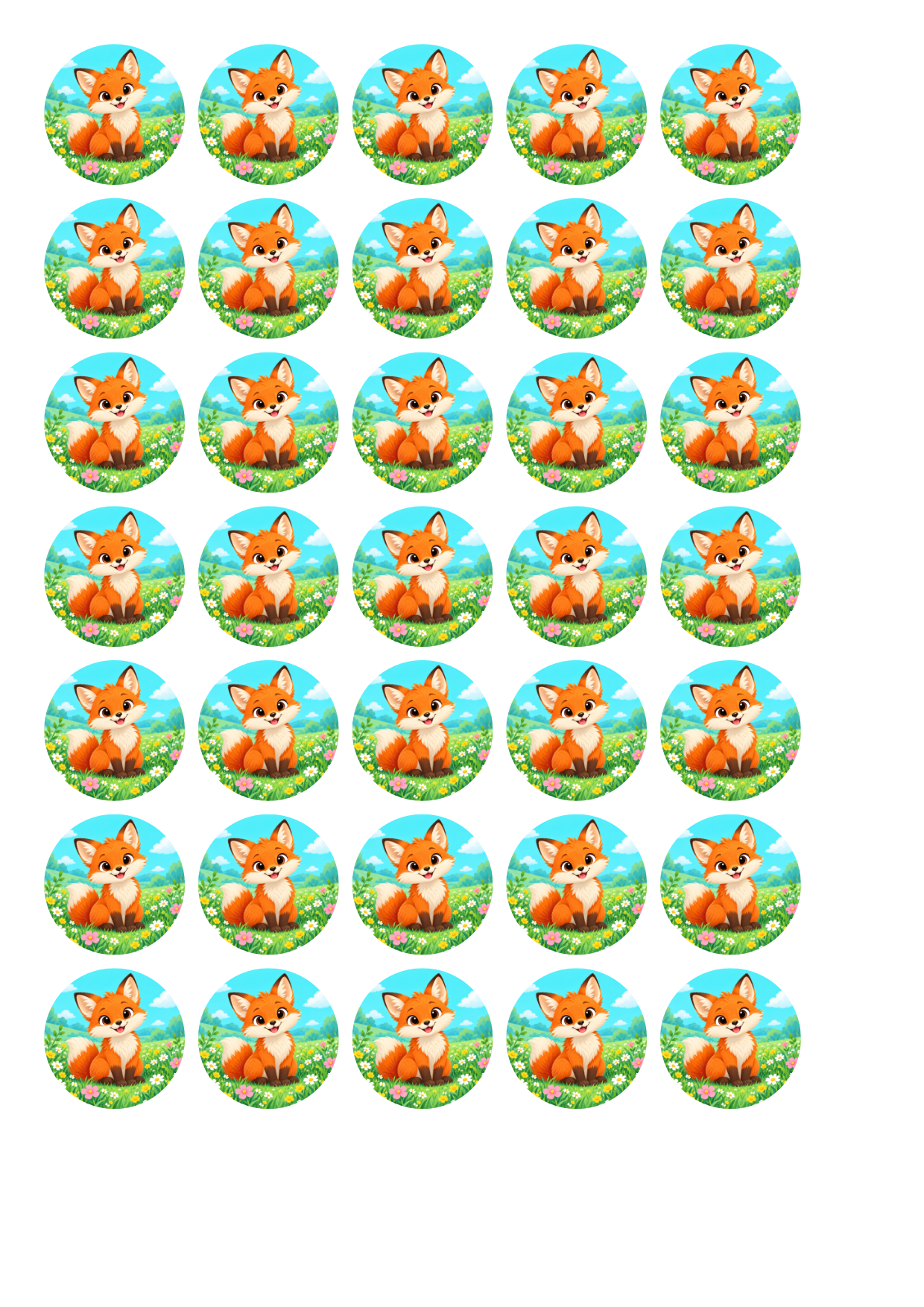
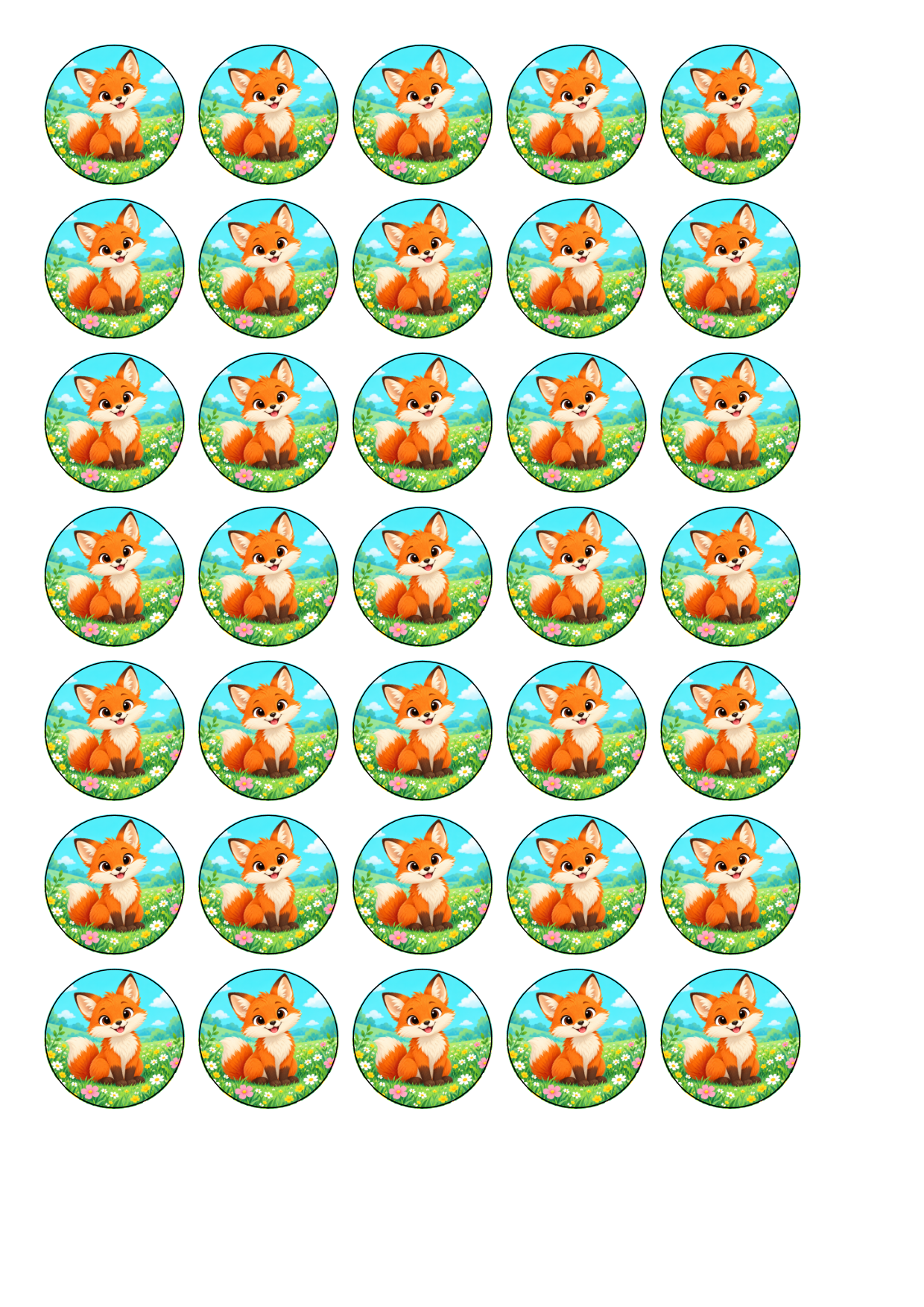
These demonstration images are 1240 × 1754 pixels at 150 DPI. Check the paper size and print scaling in your print application; do not rely on its default image placement.
4. Check the size on paper
Print at Actual size / 100%. Disable Fit to page and borderless enlargement. Check that the printer paper matches the exported sheet.
Use the application's 100 mm calibration sheet and measure both axes. Enter the measured X and Y lengths in the calibration controls if correction is needed, then print and measure again. Finally, verify your badge's cut dimensions against the cutter before a production run.
5. Save and reuse the setup
Save a portable project to keep the artwork with the layout. Sheet layouts let you reuse an arrangement with embedded images. Replace variant image changes the artwork for that variant's copies while preserving their positions, sizes and quantities; choose whether to keep or reset the crop.
System presets are protected. Personal presets can be deleted in the preset library. After changing sizes or applying settings to several variants, run Preflight and inspect the page for overlaps.
Production report counts actual placed copies on the selected pages and can export CSV.
When something looks wrong
- Low-resolution warning
- Use a larger source image, reduce the printed size or reduce artwork zoom. You may continue exporting below 300 effective DPI; inspect a test print before a batch.
- Printed objects are too large or too small
- Check Actual size / 100%, paper size and borderless enlargement before changing the layout. Then use printer calibration if needed.
- Unexpected black ring
- Check the outer cut outline setting. A ring already contained in the source image is part of that artwork and cannot be removed by switching off the export outline.
- Ungroup shortcut opens another application
- The default ungroup shortcut is Ctrl+U. Shortcuts can be customized to avoid system or graphics-driver shortcuts.
- Need to report a problem
- Save the project, note the steps and export settings, and copy diagnostics from Help. Review diagnostics before sharing them. Contact support at makerprintstudio.support@gmail.com.
Prelaunch guide. Commercial activation and checkout are still being configured. The proposed offer and draft sale policies are not yet an active sales contract.